Workflow Overview
- Configure authentication in Settings (SSH key and/or saved session).
- Use SSH Connection to connect to your remote host.
- Open Workspace to choose the remote project directory.
- Resume a previous session or start a new one.
- Use the Remote tab for text chat or voice-to-text prompts.
1) Connect to a host
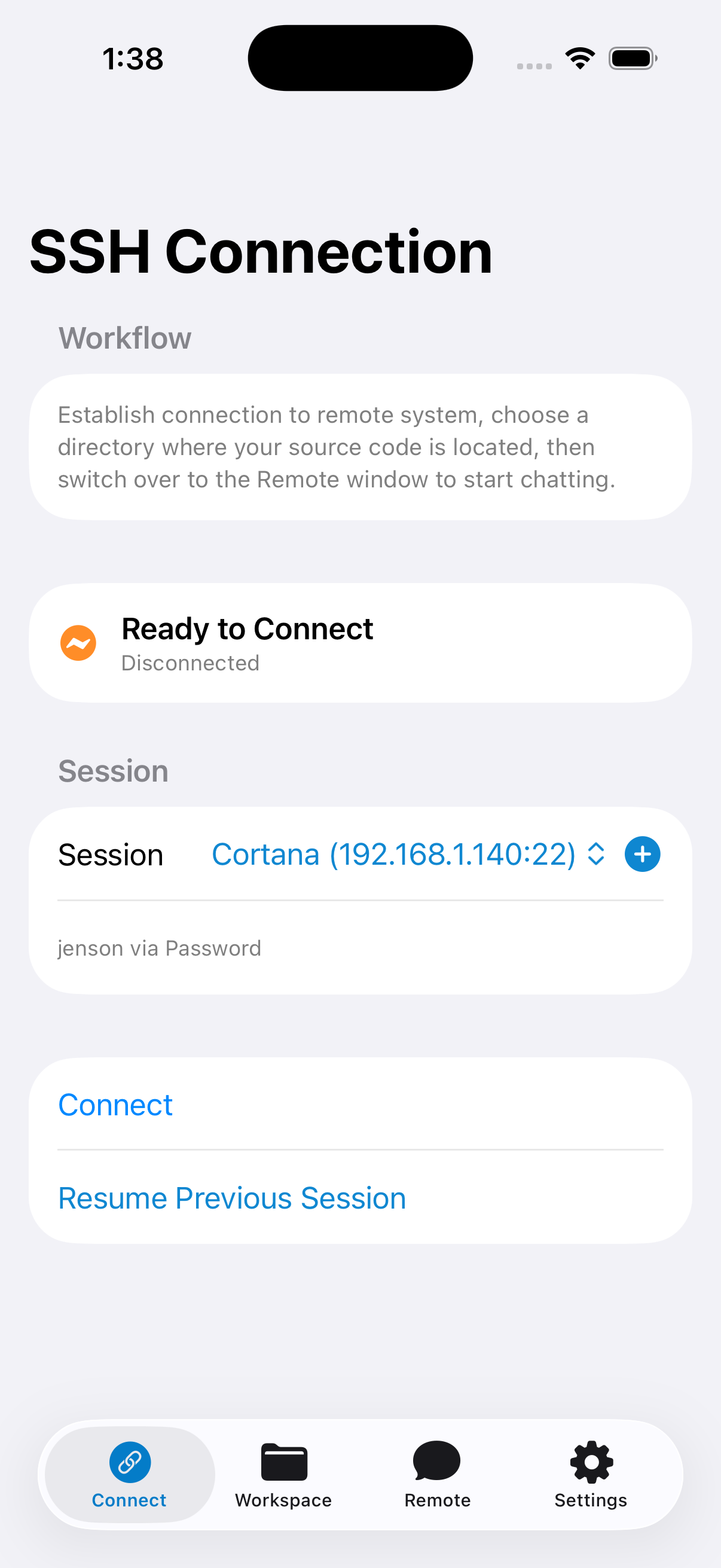
- Go to SSH Connection.
- Select an existing session or tap + to add one.
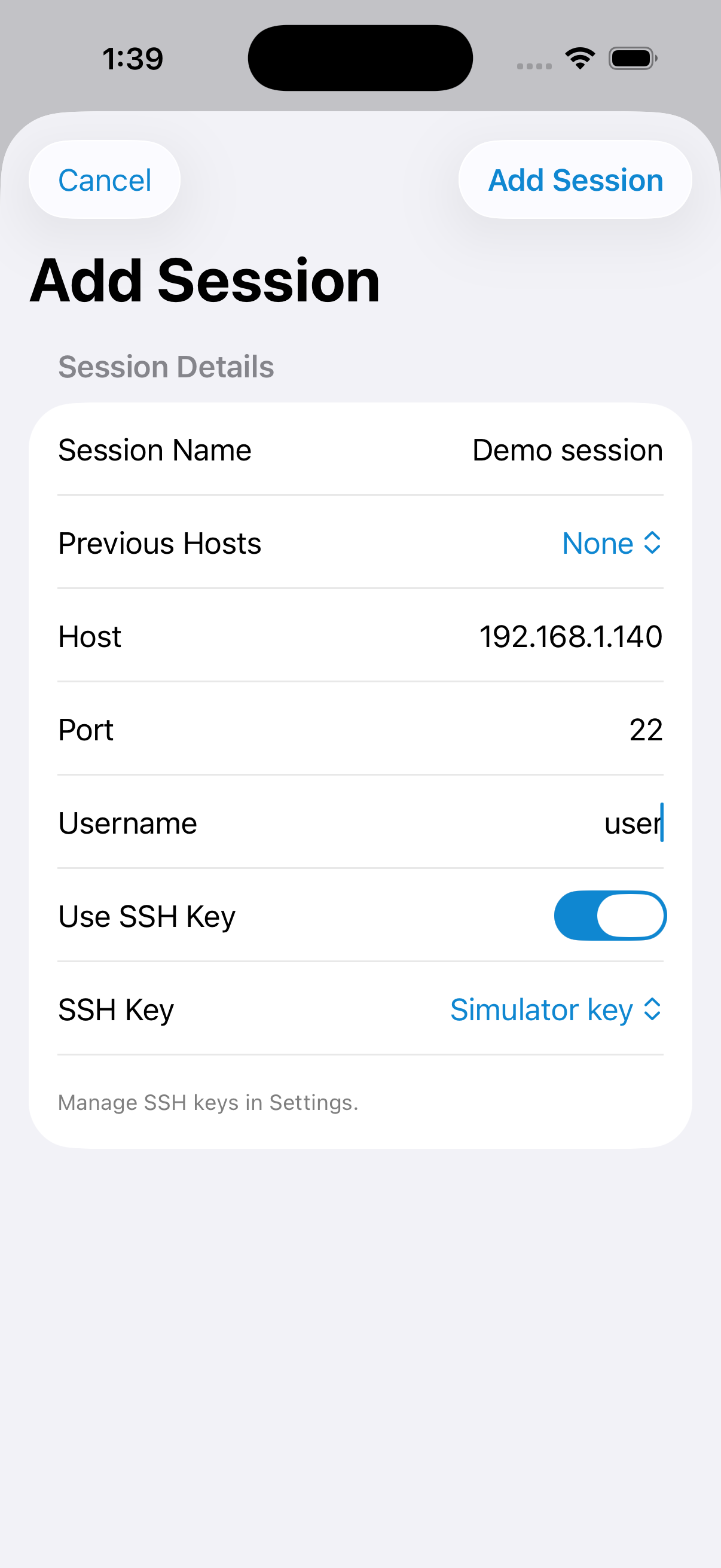
- Fill in Session Name, Host, Port, Username, and auth method.
- Tap Connect.
If password/passphrase is not saved, the app prompts at connect time.
2) Browse to your workspace directory
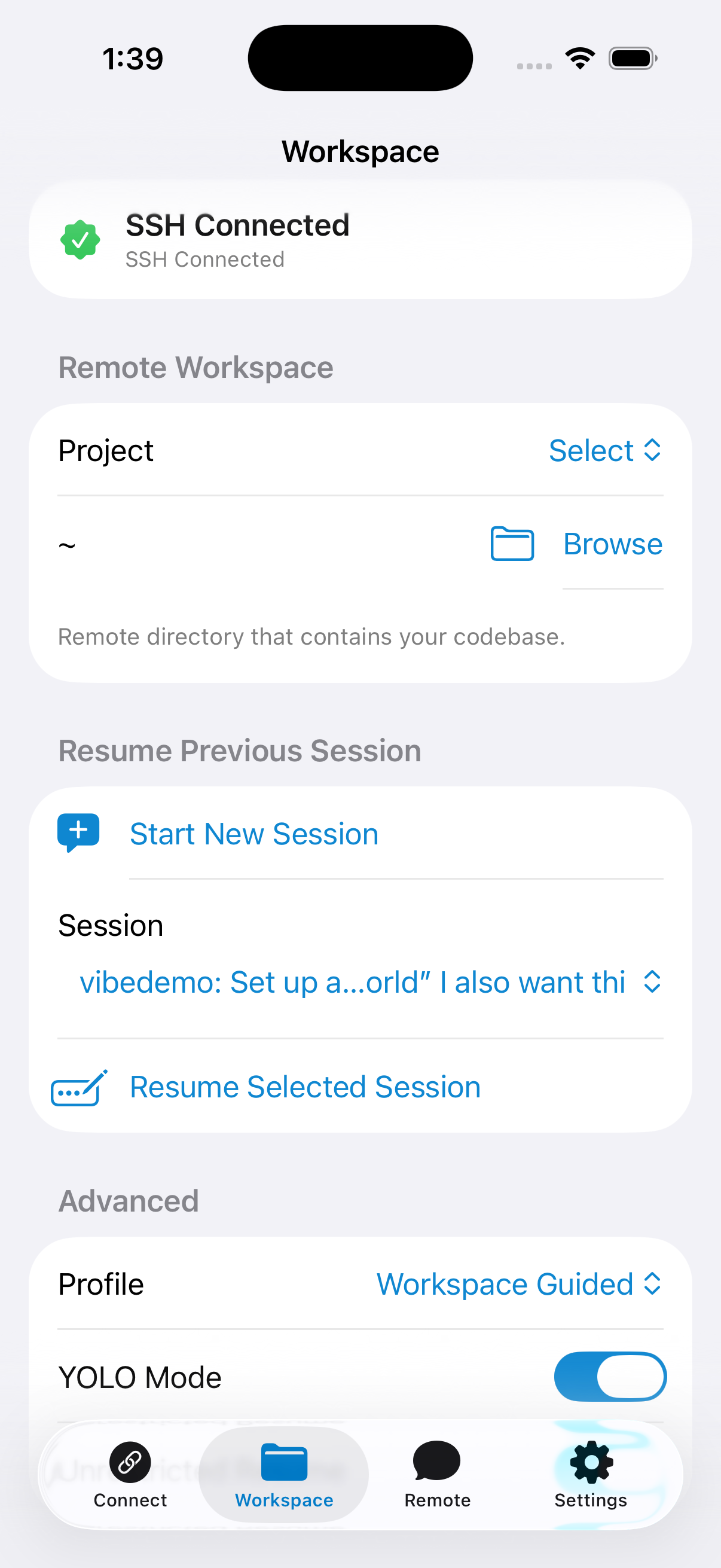
- Open the Workspace tab.
- Use Browse to navigate folders on the remote host.
- Select the project directory that contains your codebase.
- Resume a previous session or start a new session from this workspace.
Session discovery is scoped to the selected workspace path.
Advanced Modes (Workspace → Advanced)
- Safe Read-Only: Runs Codex in read-only mode with strict approvals.
- Workspace Guided: Workspace-write mode with on-request approvals.
- Workspace Auto: Runs with YOLO-style automatic approvals for fastest execution.
- Unrestricted (Dangerous): Uses dangerous bypass flags. Use only on trusted systems.
The app remembers each session's selected profile and restores it when that session is resumed.
3) Use the Remote window
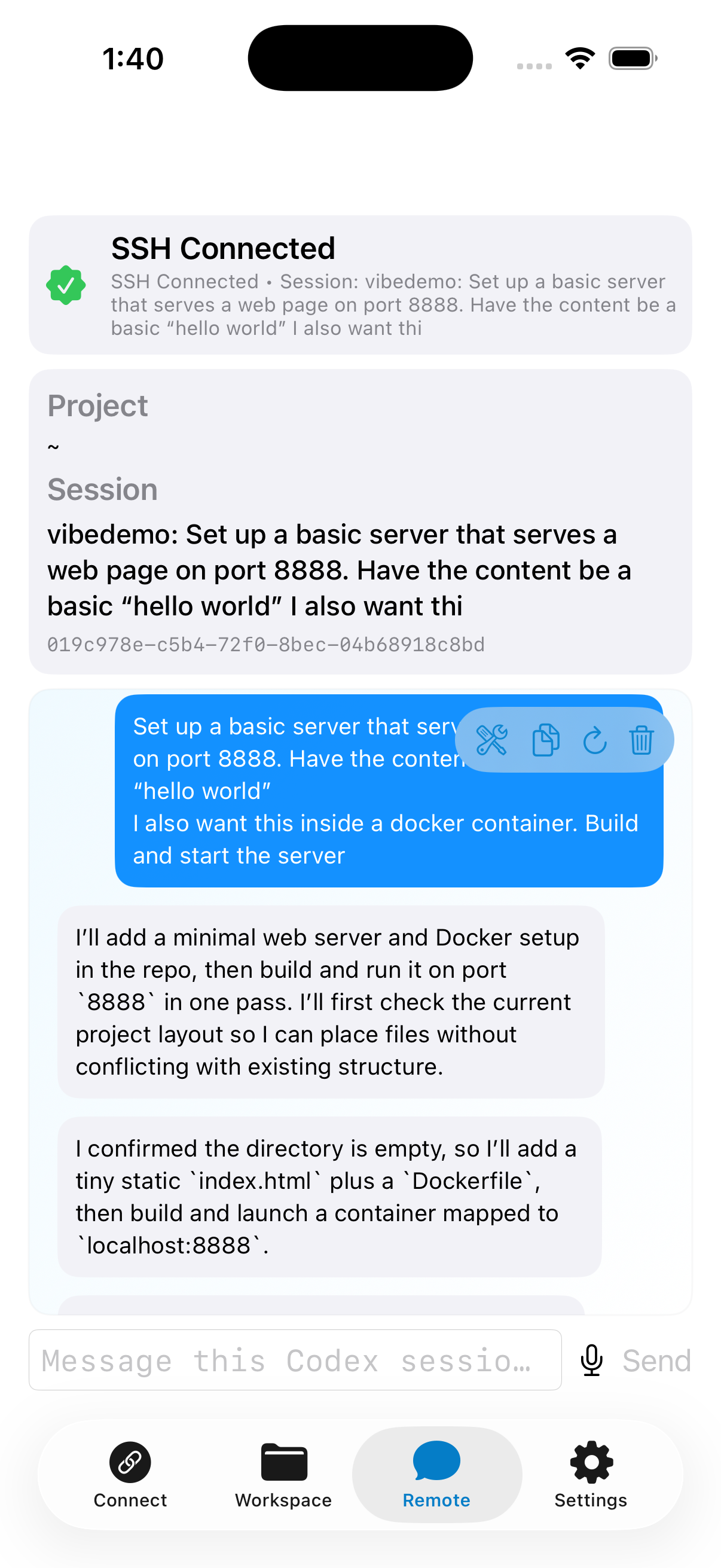
Text console
- Type prompts into the input field and send to the active session.
- Review user/assistant messages and command output in one stream.
- Use Reload/Copy/Troubleshoot controls as needed.
Voice-to-text
- Tap the microphone button in the Remote tab.
- Dictate your prompt and stop recording.
- Edit transcribed text if needed, then send.
Troubleshooting
- If Codex is not found, install it on the remote host using the in-app link.
- Use the Remote Troubleshoot panel to inspect SSH and command events.
- Verify SSH key validity and passphrase status in Settings → Manage SSH Keys.